
Weather for SuuntoPlus™
Weather You Can Read.
While You Move.
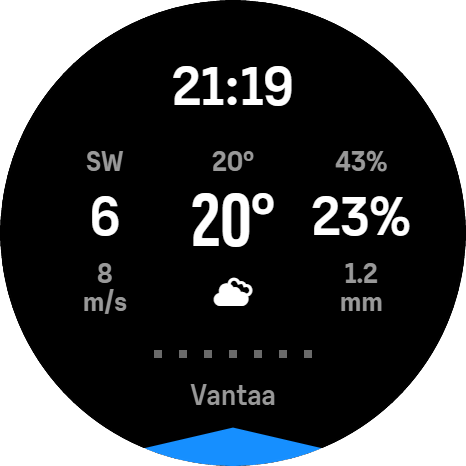
Gustin puts the current weather and the next seven hours on one workout screen — wind, temperature and precipitation in the same three columns, with a pointer showing where the wind reaches you from.
Free SuuntoPlus™ app · add it in the Suunto app (SuuntoPlus™ Store) · Suunto 9 Peak Pro, Vertical, Race, Race S, Race 2, Vertical 2 and Ocean.
Before you set off
The Forecast Stayed Home
You checked the forecast in the kitchen, then you left. Two hours later the wind has swung, the ridge is exposed, and the way back runs straight into it. Weather rarely ruins a session on its own — it changes what the second half costs you. Your call is easier when the current hour and the next seven are already on your wrist.
Check it early — and the way back is a decision, not a surprise.
Now and next
Eight Steps. One Layout.
Current, then every hour to +7 h — and every step uses the same three columns, so nothing moves as you step forward. Wind on the left, temperature in the centre, precipitation on the right. Press the upper button to advance, hold it to go back, press the lower button for Current.
- Wind pointer — the wide marker hugging the display edge, pointing inward from the direction the wind reaches you.
- Forecast ring — a thin yellow ring around the edge, meaning you're looking at a forecast hour rather than now.
- Progress squares — seven small squares above the city, filling yellow left to right, one for each hour ahead.
- City — the place the weather is for, along the bottom edge, with the clock at the top.
Showing: current weather
The wind pointer
It Turns as You Turn
The pointer shows the meteorological direction — where the wind reaches you from, not where it's headed. It's drawn at wind direction minus your current heading, so it belongs to you rather than to the map. Turn at the end of a straight and it swings to the other side of the screen. Eight 45-degree sectors keep it steady while your wrist moves.
Jumps to the quick setup steps — adding it is free.
Good to know
The Details
For the curious and the practical — how Gustin loads its data, the questions people ask, what changed in the current version, and where the limits are.
- Free — no purchase, no subscription
- Works on UI2 Suunto watches — 9 Peak Pro and later
- Adds a screen — doesn't replace yours
How it works
Gustin is a SuuntoPlus™ feature app, which means it adds one screen to a workout. Your usual sport screens stay exactly as you set them, and Gustin writes nothing into the workout summary — it reads weather values and draws them, and that is all it does.
The Current view is read as a single weather object. Each forecast hour is fetched field by field instead, because that is what the watch reliably supports. Only one request is allowed to run at any moment, and the hour you're actually looking at is the one queued next, so the screen in front of you isn't left waiting behind the background loading.
Current and +1 h load first, then browsing loads just one hour ahead. Cached hours stay ready for reuse. Values refresh after 30 minutes or when the hour changes. Temperature and wind follow your watch's own unit setting, so nothing here changes how you already read numbers. The app holds two live subscriptions — your heading and the local clock — and releases both when you leave the screen.
For the curious — the exact behaviour:
- Current weather is read as one object; forecast hours are fetched field by field.
- Exactly one request runs at a time, and the selected hour is always prioritised.
- Current and +1 h load first. Opening a forecast loads just the following hour in advance, up to +7 h. Cached hours are reused; moving faster than loading may briefly show placeholders.
- The cache refreshes after 30 minutes, when the hour changes, or when the clock moves backwards.
- Temperature and wind follow the watch's unit setting; precipitation is always in millimetres.
- Two live subscriptions only — heading and the local clock — released when you leave the screen.
- No outputs: nothing is recorded into your workout summary.
- The wind pointer is hidden entirely when heading or wind direction is unavailable.
FAQ
Which watches does Gustin work on?
UI2 Suunto watches — Suunto 9 Peak Pro, Vertical, Race, Race S, Race 2, Vertical 2 and Ocean. Older UI1 watches aren't supported.
Where do I find it?
Open the Suunto app on your phone, go to the SuuntoPlus™ Store, find Gustin and add it. It syncs to the watch, and then you add it as a SuuntoPlus™ app before starting your workout. There's no direct install link from a web page. New to SuuntoPlus™? See how to get started →
Does it cost anything?
No. Gustin is free — no purchase, no subscription.
Does it replace my normal sport screens?
No. It adds one screen to the workout and leaves your own screens untouched. It records nothing into your workout summary — it's purely a display.
Why do some values show --?
Because that value hasn't reached the watch yet. Forecast hours load gradually, so right after opening the screen — or after coming back from another watch screen — a few fields can be blank for a moment. If they stay blank, the watch probably hasn't received a recent weather update from the Suunto app on your phone.
Does the wind pointer show where the wind is going or where it's coming from?
Coming from. It's the meteorological convention — the pointer sits on the side the wind reaches you from, relative to the direction you're currently facing.
Changelog
1.08 — 9 September 2026
- Widened the precipitation probability field to give the 100% value more room on one line while keeping the same text size and alignment.
- Start with Current weather and +1 h, then load just one hour ahead as you browse the forecast.
- Reuse cached hours and stop loading forecasts that are no longer needed after changing views.
- Avoid unnecessary refreshes at the half-hour mark. Refresh after 30 minutes, when the hour changes, or when the clock moves backwards.
1.07 — 26 July 2026
- A dedicated view for Current and for each of the next seven hours.
- The wind pointer became heading-relative and now hugs the display edge, so it turns with you.
- Forecast hours are marked clearly — yellow time, yellow pointer, a thin outer ring and a seven-step progress indicator — so you always know how far ahead you're looking.
- The three-column layout was refined with feels-like temperature, weather icons, precipitation, location and clearer units.
- New controls: press the upper button to advance, hold it to go back, press the lower button for Current.
- Switching is smoother because hours load gradually and already-loaded weather is reused.
- Reliability improved, and weather icons were restored on physical watches.
1.03 — 26 July 2026
- First public release.
Data & limits
The weather itself comes from Suunto. It's delivered to the watch by the
Suunto app on your phone, so keep the two connected long enough to receive a
recent update before you start. If the watch hasn't synced for a while,
values can be out of date or show --.
Forecast hours load gradually rather than all at once. Immediately after
opening Gustin, or after returning from another watch screen, some values may
briefly show -- while the hours arrive.
Running several SuuntoPlus™ apps together with active route navigation puts extra pressure on the watch. If it becomes unstable, run fewer at once.
If something doesn't behave the way this page describes, tell me — [email protected].
Built to Be Read at a Glance
-
Eight Hours, One Layout
Current plus every hour to +7 h, always in the same three columns. Nothing shifts position as you step forward, so you read it the same way every time.
-
Wind Relative to You
The pointer sits where the wind reaches you from, minus your current heading. Turn around and it swings across the screen, because it belongs to you, not the map.
-
Instant Once Loaded
The hour you're looking at is fetched first; the rest load quietly behind it. After that, moving through the eight views doesn't wait on the watch.
-
Adds a Screen, Changes Nothing
Your sport screens stay as you built them. Gustin records nothing into your workout summary and has nothing to configure — it's a display, and only a display.

A note from me
Why the Wind Comes First
I kept wanting the same thing on long, exposed routes: not a wind speed, but a side. Knowing it's 8 m/s tells you less than knowing it's arriving over your right shoulder and will be in your face for the whole way back — and that only works if the pointer accounts for the direction you're actually facing.
So Gustin draws it at wind direction minus heading, sits it right on the edge of the display, and quantises it into eight sectors so it doesn't twitch while your arm swings. Everything else on the screen is there to keep that one reading in context.
— Łukasz, szmigieldesign
Getting started
Set It Up Once
Suunto 9 Peak Pro, Vertical, Race, Race S, Race 2, Vertical 2 and Ocean. Older UI1 watches aren't supported. There is nothing to configure — three gestures to learn, and that's the whole app.
1 · Get it on your watch
- Open the Suunto app on your phone.
- Go to the SuuntoPlus™ Store and find Gustin.
- Tap Add — it syncs across to the watch.
2 · Then, on your watch
-
Add it before you start.
Add Gustin as a SuuntoPlus™ app before you start the workout.
-
Step through the hours.
Press the upper button to step through the hours, hold it to go back, press the lower button to return to Current.
-
Give it a moment.
On the first screen, give it a moment while the forecast hours load.
New to SuuntoPlus™? See how to get started →